

| I l@ve RuBoard |
|
19.4 A Simple FormOne of the most common user-interface constructs is the basic form. Typically, forms are made up of labels and fields, with the label describing the text to be entered in the field. Here's a primitive TextForm class that shows the use of mnemonics, tooltips, and basic accessibility support. Note that we call setLabelFor( ) to associate each label with a text field. This association allows the mnemonics to set the focus and, together with setToolTipText( ), supports accessibility (see Chapter 25). // TextForm.j ava
//
import javax.swing.*;
import java.awt.event.*;
import java.awt.*;
// A simple label/field form panel
public class TextForm extends JPanel {
private JTextField[] fields;
// Create a form with the specified labels, tooltips, and sizes.
public TextForm(String[] labels, char[] mnemonics, int[] widths, String[] tips) {
super(new BorderLayout( ));
JPanel labelPanel = new JPanel(new GridLayout(labels.length, 1));
JPanel fieldPanel = new JPanel(new GridLayout(labels.length, 1));
add(labelPanel, BorderLayout.WEST);
add(fieldPanel, BorderLayout.CENTER);
fields = new JTextField[labels.length];
for (int i=0; i < labels.length; i+=1) {
fields[i] = new JTextField( );
if (i < tips.length) fields[i].setToolTipText(tips[i]);
if (i < widths.length) fields[i].setColumns(widths[i]);
JLabel lab = new JLabel(labels[i], JLabel.RIGHT);
lab.setLabelFor(fields[i]);
if (i < mnemonics.length) lab.setDisplayedMnemonic(mnemonics[i]);
labelPanel.add(lab);
JPanel p = new JPanel(new FlowLayout(FlowLayout.LEFT));
p.add(fields[i]);
fieldPanel.add(p);
}
}
public String getText(int i) {
return( fields[i].getText( ) );
}
public static void main(String[] args) {
String[] labels = { "First Name", "Middle Initial", "Last Name", "Age" };
char[] mnemonics = { 'F', 'M', 'L', 'A' };
int[] widths = { 15, 1, 15, 3 };
String[] descs = { "First Name", "Middle Initial", "Last Name", "Age" };
final TextForm form = new TextForm(labels, mnemonics, widths, descs);
JButton submit = new JButton("Submit Form");
submit.addActionListener(new ActionListener( ) {
public void actionPerformed(ActionEvent e) {
System.out.println(form.getText(0) + " " + form.getText(1) + ". " +
form.getText(2) + ", age " + form.getText(3));
}
});
JFrame f = new JFrame("Text Form Example");
f.setDefaultCloseOperation(JFrame.EXIT_ON_CLOSE);
f.getContentPane( ).add(form, BorderLayout.NORTH);
JPanel p = new JPanel( );
p.add(submit);
f.getContentPane( ).add(p, BorderLayout.SOUTH);
f.pack( );
f.setVisible(true);
}
}
We've included a simple main( ) method here to show how this form class might be used. Clearly, much could be done to make this simple class more flexible and powerful. That aside, Figure 19-4 shows what we get. Figure 19-4. A simple text form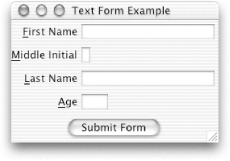 19.4.1 Understanding JTextField SizingDepending on how you construct your JTextField, and how it is laid out in its container, you may be a bit surprised by its size when it appears on the screen. Here are three things to watch out for:
19.4.1.1 Restricting inputOne of the most common extensions of a text field is a field that enforces some type of restriction on the text that may be entered into it (uppercase only, numbers only, no more than 10 characters, and so on). With a java.awt.TextField, such restrictions can be enforced by filtering key events. In earlier versions of Swing, this was done by creating a restricted document model. As of SDK 1.4, Swing provides a JFormattedTextField (described in Chapter 20) for this purpose. |
| I l@ve RuBoard |
|